This post is for those of you who think to yourselves, “I know there’s a way to make a table of contents in Word, but I don’t have time to learn that right now.”
Making a Table of Contents takes way less time than you think.
Once you have assigned heading styles to your chapters and subheadings, you can create a Table of Contents in three clicks.
HOW TO CREATE A TABLE OF CONTENTS
- Assign headings to your chapters and subtitles (learn how HERE).
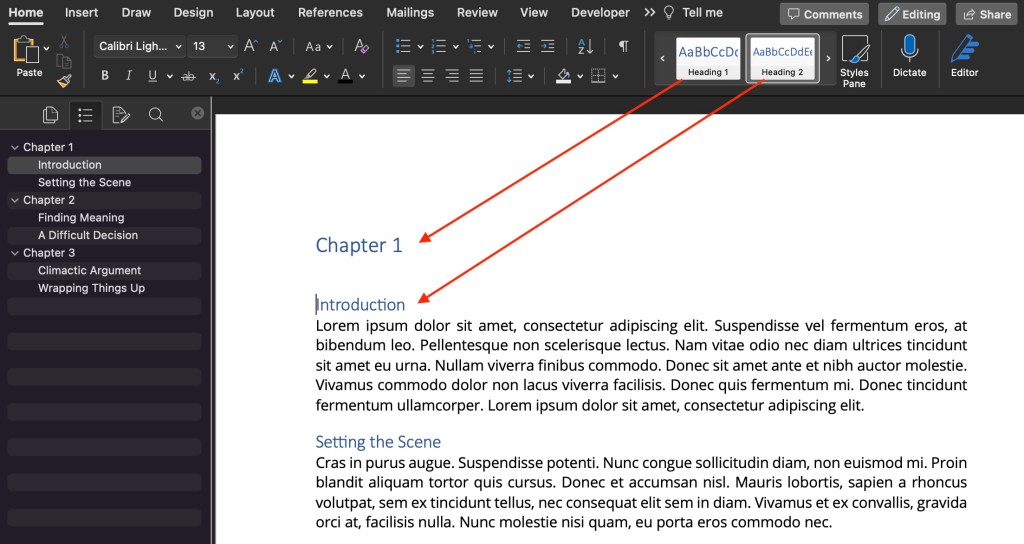
- Click References > Table of Contents
- Choose a Style (I chose Classic)

Here is what my Table of Contents looked like with Word’s default style settings:
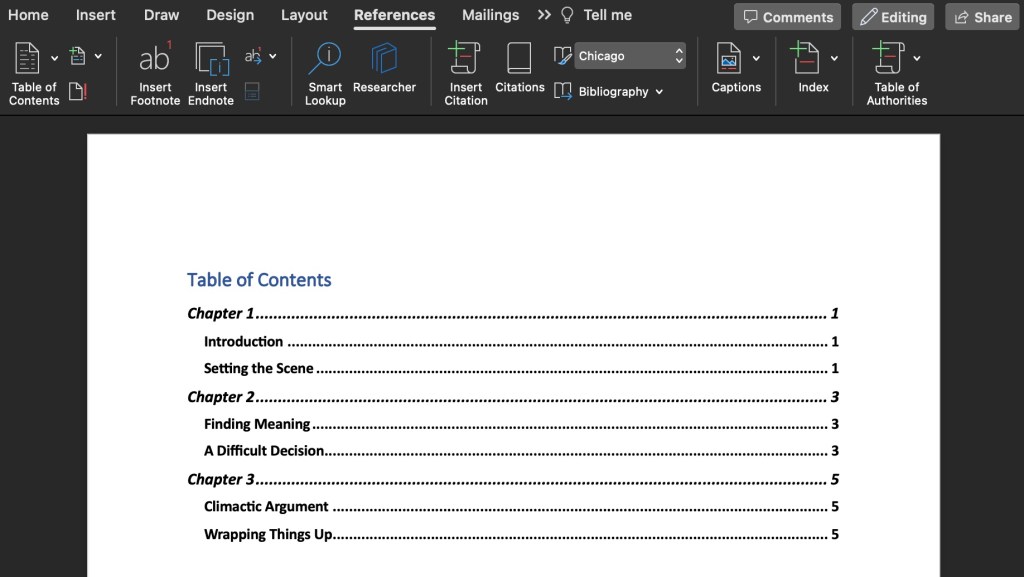
You can change the fonts, font size, style, and colour using your usual font tools under the HOME tab in your Main Menu:
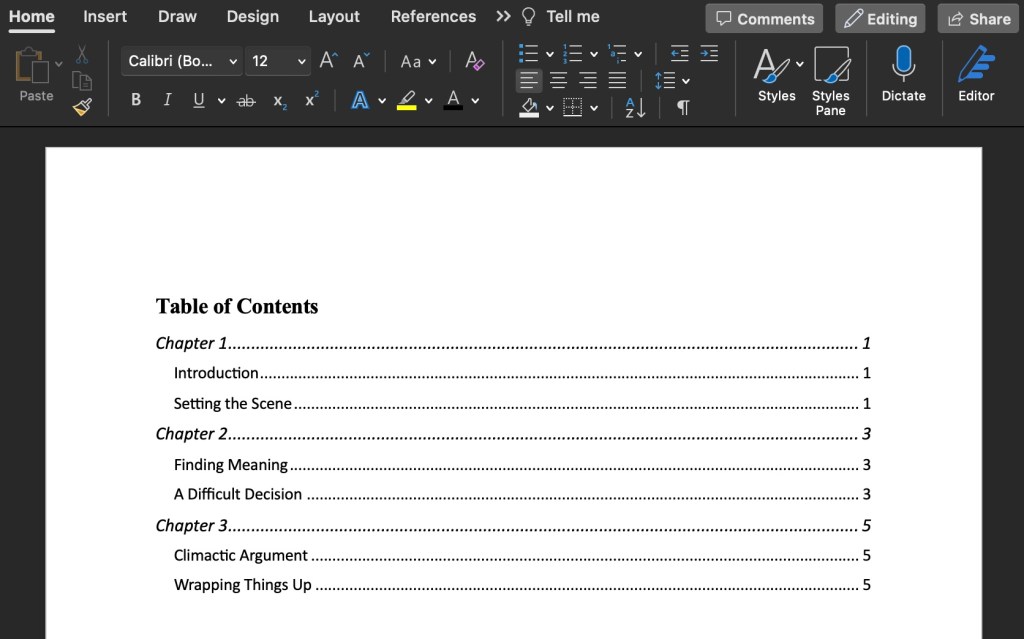
Done!
*** If you change anything in your document that should be reflected in the Table of Contents, you must update it manually. Double-click the Table of Contents in your document, and under the drop-down menu, choose Update Table…

 TARYN SIROVE