Do you find yourself scrolling up and down long manuscripts, struggling to locate sections?
Or perhaps you’ve saved your chapters as separate documents that you must continually open and close, minimize and maximize, or search for behind other windows.
In a few simple steps, you can streamline your work process for your long-form documents.
Using the Headings feature in Word will allow you, and anyone else, to move around your document with ease.
(And once you have headings and subheadings set up, when your manuscript is complete, you can create a table of contents in a matter of a few clicks.)
HOW TO ASSIGN HEADINGs
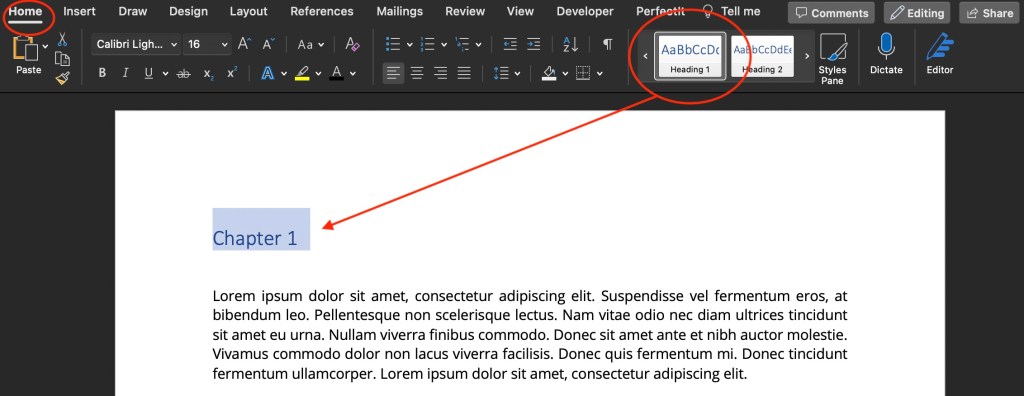
- Highlight your chapter title
- Click the Home tab in the Main Menu
- In the Styles window, click the side arrows until you find Heading 1 and select it (All your headings options might already be visible if your working window is expanded fully)
- Repeat with each of your chapters
USING THE NAVIGATION PANE
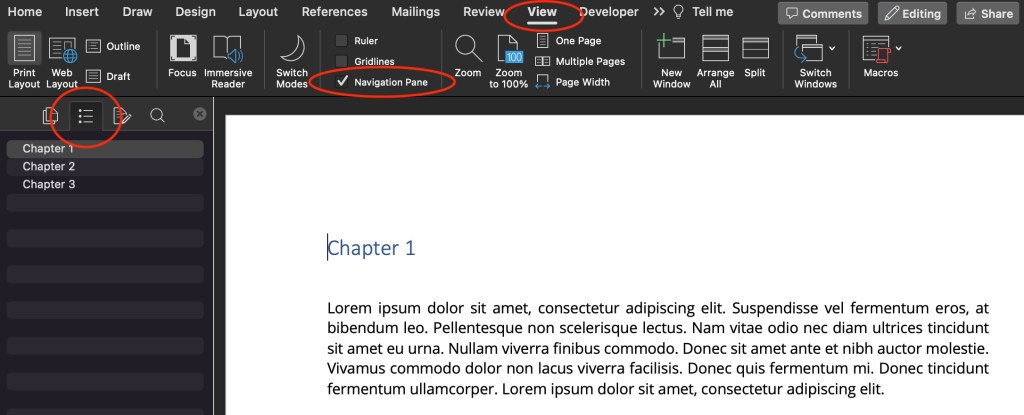
Once you’ve assigned a headings style to each of your chapters, you can use the Navigation Pane to navigate around your document.
- Click the View tab in your Main Menu
- Check the box for Navigation Pane
- Inside the Navigation Pane, click the Document Map tab
Create subheadings for more granular navigation
- Home tab > Styles window > choose Heading 2
- Repeat with each of your subheadings

You will thank yourself, and so will your editor!
To change the way your headings look (font / font size / font colour), click HERE
Now that you have smart headings, Word can automatically populate a Table of Contents for your document in a matter of clicks. To learn how, click HERE

 TARYN SIROVE