As dazzling as Word’s default headings styles may be, you may wish to choose something other than Calibri font in blue for your chapter titles and subheadings.
You can change these manually by highlighting the chapter title or subheading and using your usual font tools on your home tab. Or…
You can create your own heading buttons with your choice of styles/format to use throughout your document.
Make Custom HEADINGs buttons
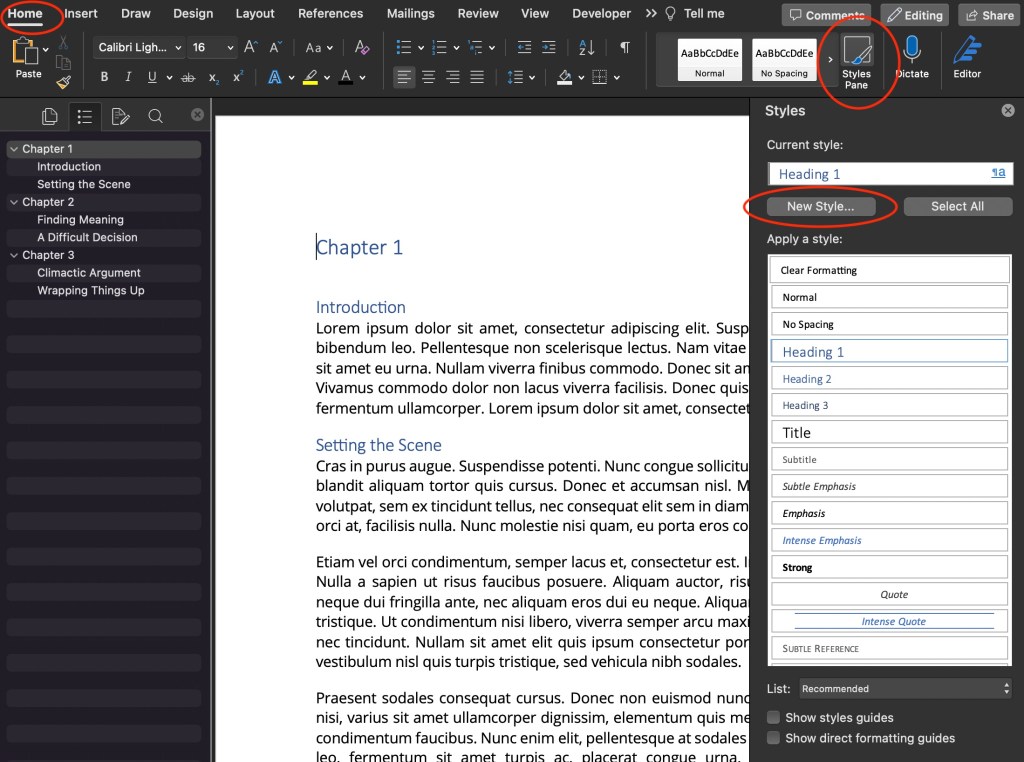
- Under the Home tab in your Main Menu, click Styles Pane
- Highlight or set your curser on a heading in your document (I chose Chapter 1)
- Click New Style
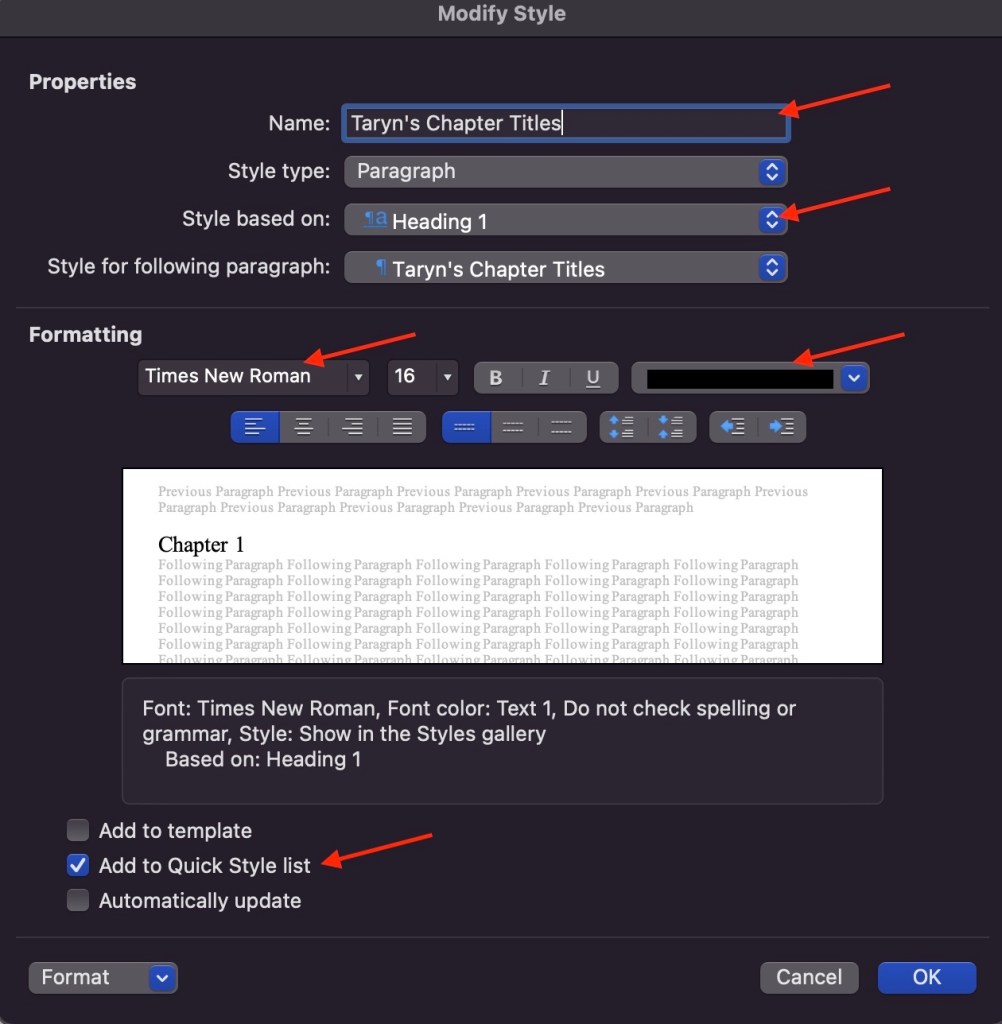
- Write in a name for your style (I chose “Taryn’s Chapter Titles”)
- Leave the “Style based on” setting at Heading 1
- Choose your font, font size, font styles, and font colour
- Select the checkbox for “Add to Quick Style list”
- Click OK
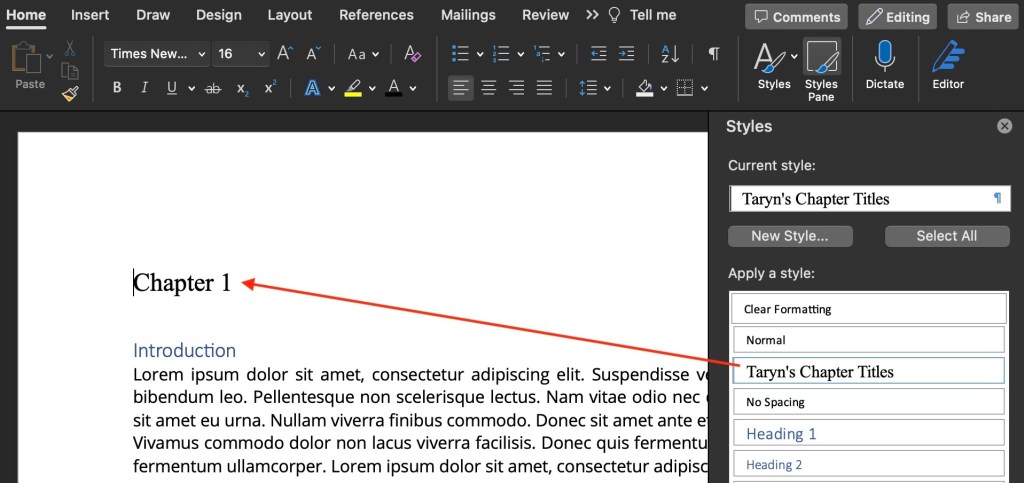
Here’s what my chapter heading looks like now:
- Repeat the steps above to change the format of your subheadings
- Change “Style based on” to Heading 2
- Click OK

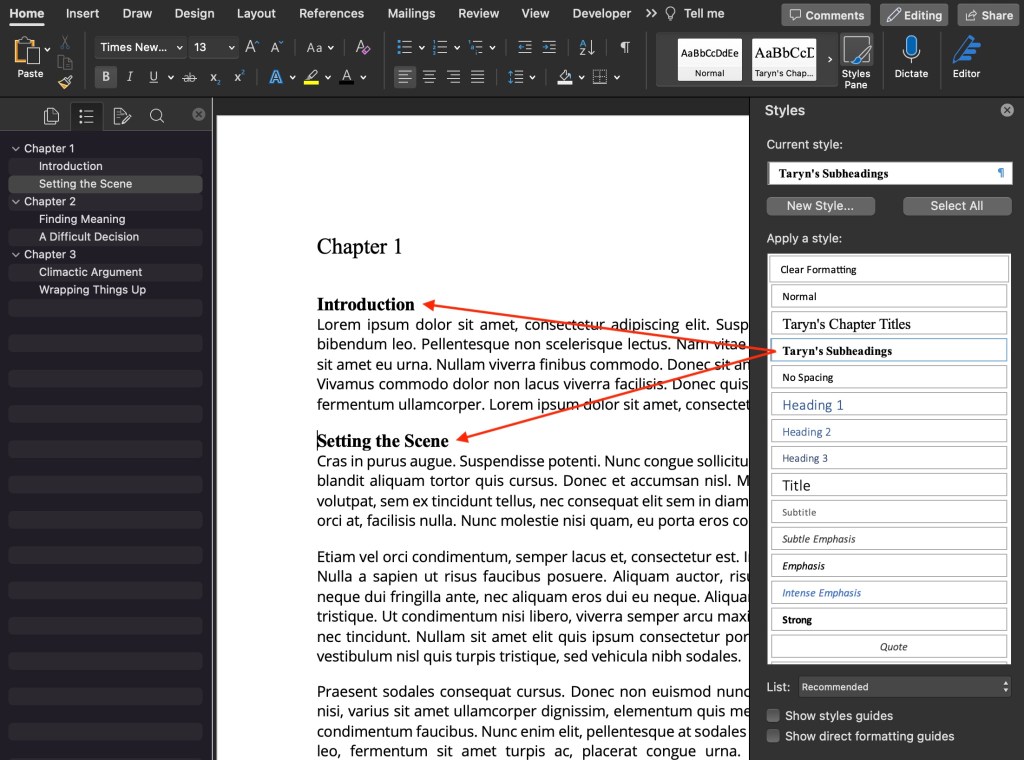
Now you can access your custom styles in the Quick Styles list under the Home tab in your Main Menu:
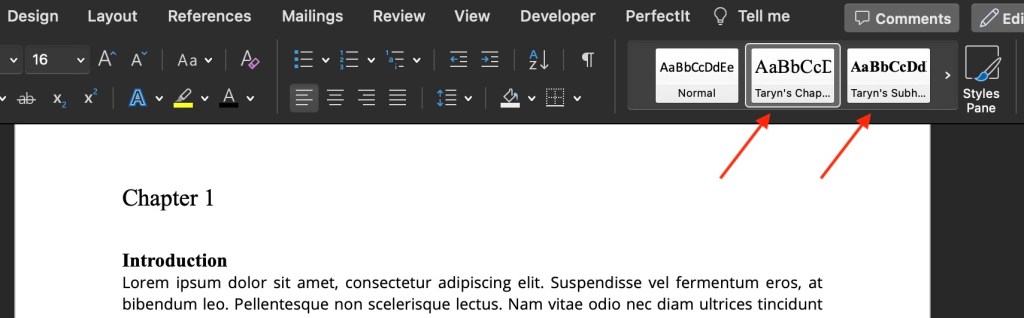
Beauteous!

 TARYN SIROVE