Handling Tracked Changes with Ease

You’ve received your manuscript back from your editor with markup. It’s time to review all the changes, and the task ahead feels daunting. Is there a way to speed things up a bit?

Setting your displays and creating keyboard shortcuts can make the task of accepting and rejecting changes a lot faster and easier.

  • 1. Set Word to “Show Only Comments and Formatting in Balloons.”

This means that additions and deletions will appear in the body of the text. It is much easier to apprehend changes when they appear in the body of the text rather than appearing offset as balloons.

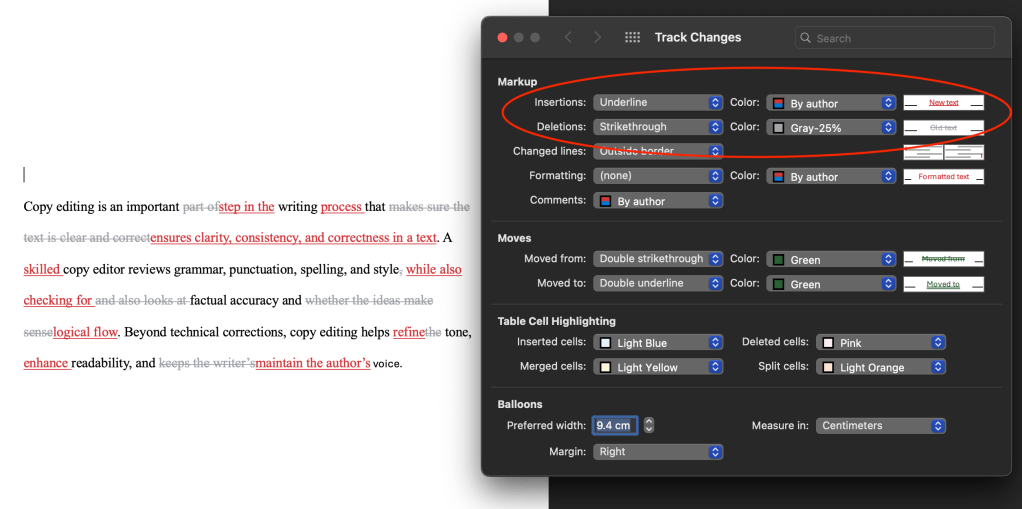
  • 2. Set the colours of the markup so that additions visually advance (using a bright colour) and deletions visually recede (using a dull colour).

This reduces competing messages, and it is easier to grasp changes when your eye is drawn to what the text has changed to. Tracking > Markup Options > Preferences…
  • 1. Create a keyboard shortcut for โ€œAccept Change and Move to Next.โ€

This will save your hand from performing one million clicks. It also keeps your cursor on the page, making your reviewing process more efficient. Choose your own keyboard shortcut!
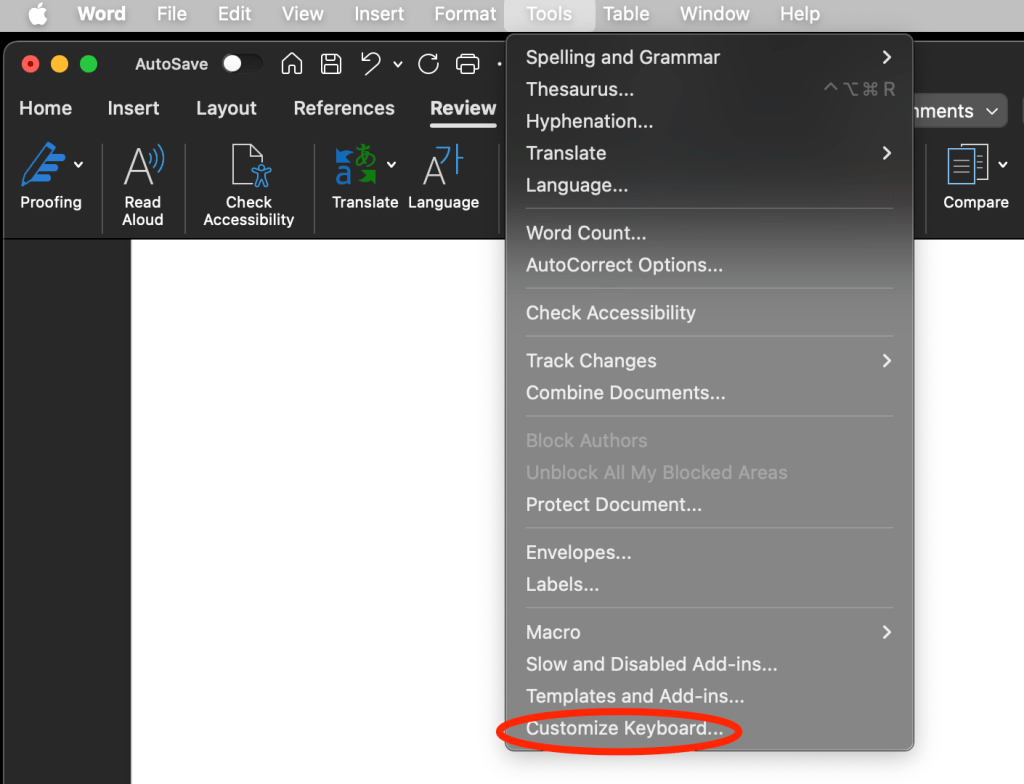
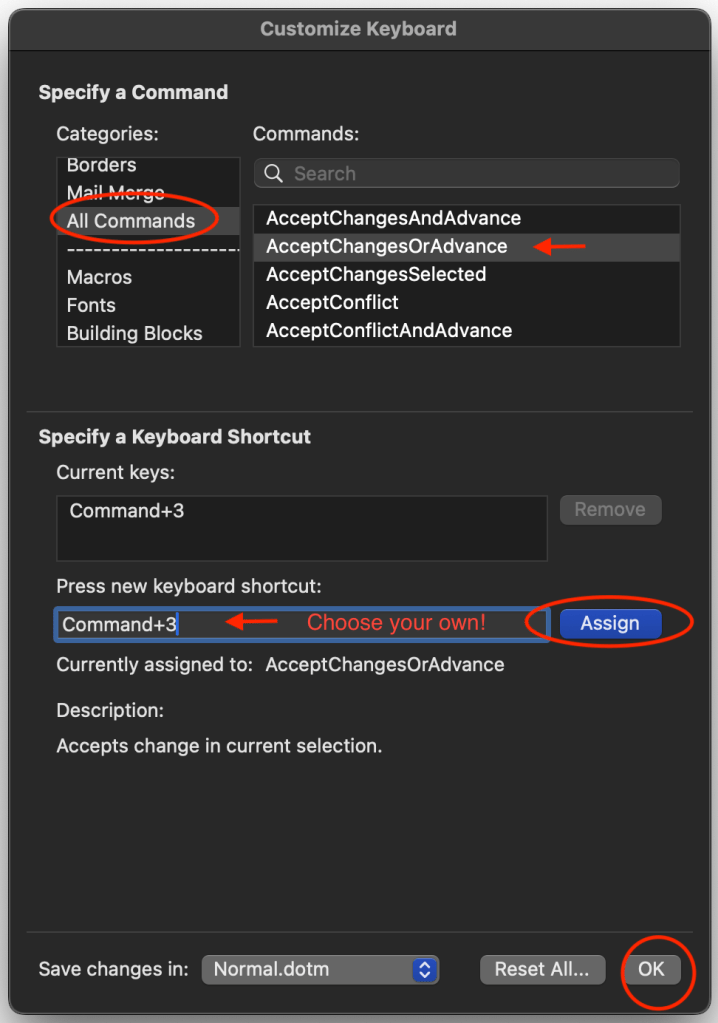
  • 2. Similarly, you can create a keyboard shortcut for โ€œReject Change and Move to Next.โ€

BONUS: If you want to accept large areas of changes all at once, you can assign a keyboard shortcut to “AcceptChangesSelected.”

I hope this helps make reviewing edits a little less of a headache!

Markup colour tip comes from Geoff Hart’s Effective Onscreen Editing: New Tools for an Old Profession.

Two Tips for Cleaning Up Your Manuscript

Once you know these, you canโ€™t unknow them, and you will see them in all kinds of published theses and dissertations (including my own, oops!). 

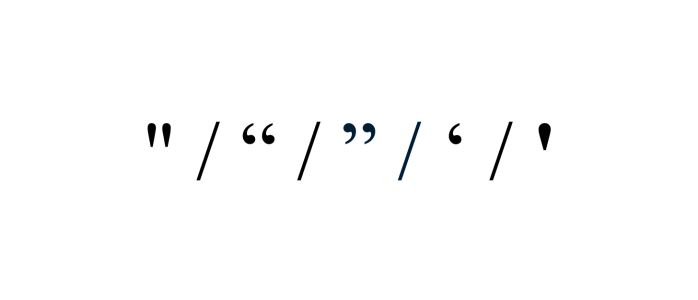
Straight quotes look the same whether they open or close a quotation and are a holdover from the typewriter. Smart quotes are the curly quotation marks that indicate the opening or closing of a quotation.

Often, when we cut and paste quotes from the web or other sources, we can unwittingly bring the local formatting into our documents, causing straight quotes to show up where they shouldn’t.

Fix: Find and Replace All

Word is set to automatically use smart quotes, so all you have to do is put a quotation mark into โ€œFindโ€ and a quotation mark into โ€œReplaceโ€ and select โ€œReplace All.โ€

Word will replace all the quotation marks with smart quotes whether they were originally straight or already smart.

You can do this with apostrophes as well. 

Can you spot the difference?

Commas following italicized titles, such as The Color Purple, should be consistent with the punctuation of the surrounding text (as it is here). 

It can be difficult to notice the difference between an italicized comma and a regular comma if you’re not looking for it, but now you’ll see this everywhere, and it will bug you. You’re welcome.

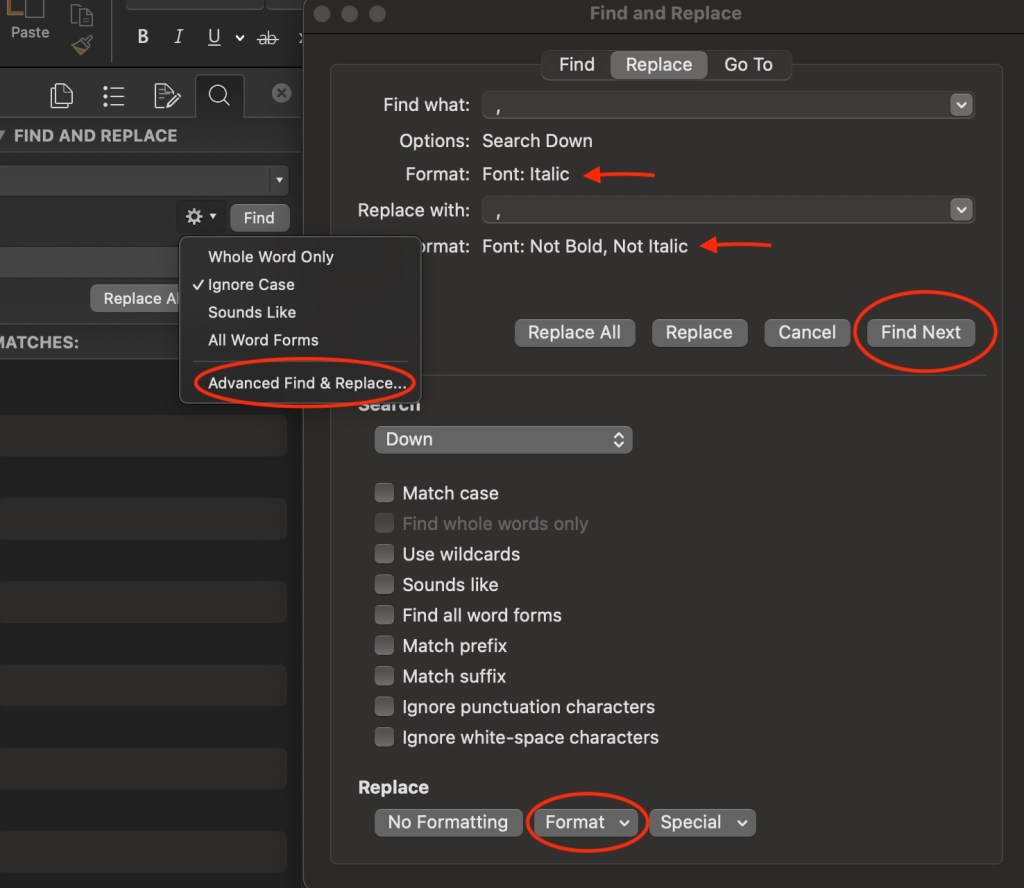
Fix: Advanced Find and Replace 

Under Advanced Find and Replace, type a comma in the โ€œFind whatโ€ field. 

Then use the dropdown and select Format > Font > Font Style > Italics

Under the “Replace” tab, type a comma in the โ€œReplace withโ€ field. 

Then select Format > Font > Font Style > Regular

You can’t use “Replace All” for this fix. Rather, you will have to decide whether or not to replace each instance individually, because there may be cases where the italicized comma should remain, such as when the comma appears within a title or italicized passage.

If you have any trouble executing these tips, please let me know here!

Dashes: Keyboard Shortcuts

An em dash is about the length of the letter M (โ€”) , and an en dash is about the length of the letter N (โ€“). That is all you need to know. Just kidding, but this tidbit certainly helps me keep them straight!

An em dashโ€”one of my favourite forms of punctuationโ€”can replace a comma, a colon, or surround parenthetical information.ย 

Shortcuts:

On a Mac: Option + the minus sign

On a PC: Control + the minus sign

An en dash represents the idea of โ€œbetween ___ and ___.โ€

Example: The meeting will take place 9:00am โ€“ 11:00am.

Shortcuts:

On a Mac: Option + the minus sign

On a PC: Control + the minus sign

A hyphen is used in compound words (and, like the en dash, the hyphen can also represent a range, for example pages 4-9).

Example: book-length manuscript

But, use an en dash when a prefix applies to more than one word that follows it:

Example: postโ€“World War Two

For a succinct and helpful guide on how to use these punctuation marks in your writing, see https://www.merriam-webster.com/grammar/em-dash-en-dash-how-to-use


What Copy Editors Do and Don’t Do

As a copy editor who enjoys working on theses and dissertations, I often work with scholars hiring a copy editor for the first time. Sometimes they can feel unsure about what they’re getting into.

They might wonder, Will my writing be scrutinized and judged? Should I feel embarrassed about grammar mistakes or overlooked gaps in logic? Will the copy editor bulldoze over my writing style?

Such concerns make sense considering the nature of academic scholarship: writing in isolation on the one hand and sharing work under rigorous scrutiny on the other. Copy editing is a great way to help bridge this divide. I’d like to offer reassurance that a copy editor is there to support their clients, not to judge them or change their work.

Freelance copy editors provide a second pair of eyes on writing that may have been weeks, months, or years in the making. If you’ve read over the same sentence a hundred times, would you notice an extra “the” in there? And when you are steeped in the nuances of your ideas, can you always predict how your messages will land for someone coming to them for the first time? Copy editors bring that distance, and they can support you in delivering clean and clear writing to your readers.

A copy editorโ€™s job is to notice things, suggest changes, and help you say what you want to say.

  • Rewrite your work.
  • Make changes according to our personal preference or personal style.
  • Implement changes without your knowledge (all suggested changes are tracked).
  • Judge your writing.
  • Police grammar (a good editor will respect cultural, political, or creative decisions that veer from dominant language rules).
  • Criticize the writing or the writer.
  • Have the final say.
  • Guarantee a perfect manuscript (editors are human!).
  • Correct errors in grammar, spelling, and usage (e.g. comprised or composed?).
  • Suggest changes to wording or organization for the sake of clarity and flow.
  • Query the author when unsure about meaning or intent.
  • Preserve the authorโ€™s voice.
  • Check that formatting is consistent.
  • Use track changes for the author to accept or reject.
  • Follow a style guide (e.g. Chicago, APA, MLA).
  • Work with authors or publishers to meet specific needs.
  • Field questions (any questions!).

A freelance copy editor can:

  • Help you assess what type of editing would be most worthwhile to focus on.
  • Provide resources and tips so you can do certain things yourself, such as format your footnotes.
  • Work on a portion of your project thatโ€™s giving you grief.

Speaking more personally, I know how stressful and overwhelming the process of writing a dissertation can be, which is one of the reasons why I enjoy supporting graduate scholars in their academic journey. It is important to me to bring care and compassion to the editing process.

If you’re still unsure, please reach out to schedule a complementary phone call to chat about your needs!