Handling Tracked Changes with Ease

You’ve received your manuscript back from your editor with markup. It’s time to review all the changes, and the task ahead feels daunting. Is there a way to speed things up a bit?

Setting your displays and creating keyboard shortcuts can make the task of accepting and rejecting changes a lot faster and easier.

  • 1. Set Word to “Show Only Comments and Formatting in Balloons.”

This means that additions and deletions will appear in the body of the text. It is much easier to apprehend changes when they appear in the body of the text rather than appearing offset as balloons.

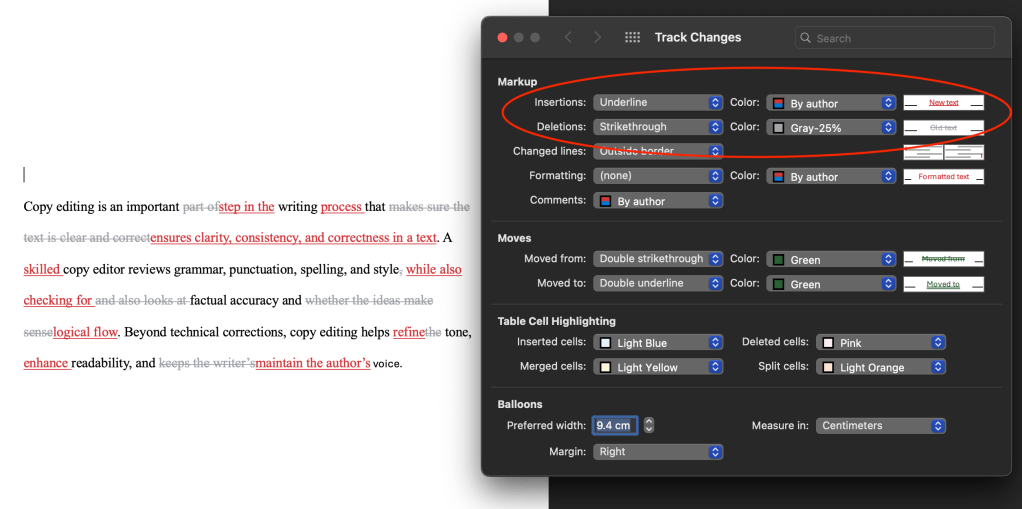
  • 2. Set the colours of the markup so that additions visually advance (using a bright colour) and deletions visually recede (using a dull colour).

This reduces competing messages, and it is easier to grasp changes when your eye is drawn to what the text has changed to. Tracking > Markup Options > Preferences…
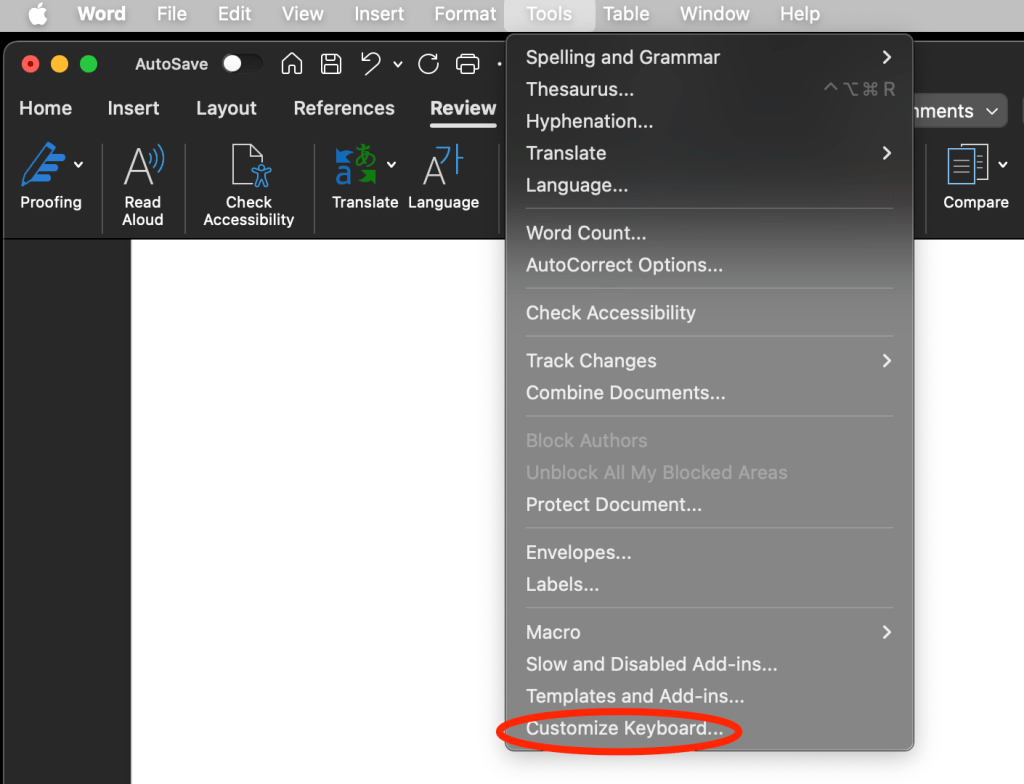
  • 1. Create a keyboard shortcut for โ€œAccept Change and Move to Next.โ€

This will save your hand from performing one million clicks. It also keeps your cursor on the page, making your reviewing process more efficient. Choose your own keyboard shortcut!
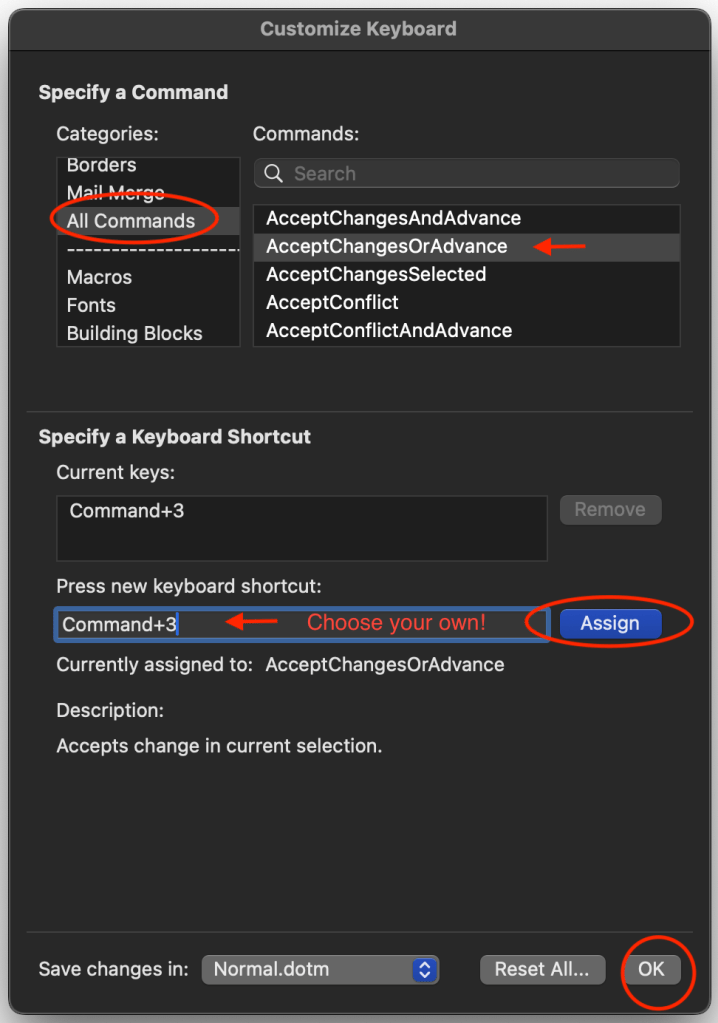
  • 2. Similarly, you can create a keyboard shortcut for โ€œReject Change and Move to Next.โ€

BONUS: If you want to accept large areas of changes all at once, you can assign a keyboard shortcut to “AcceptChangesSelected.”

I hope this helps make reviewing edits a little less of a headache!

Markup colour tip comes from Geoff Hart’s Effective Onscreen Editing: New Tools for an Old Profession.

Two Tips for Cleaning Up Your Manuscript

Once you know these, you canโ€™t unknow them, and you will see them in all kinds of published theses and dissertations (including my own, oops!). 

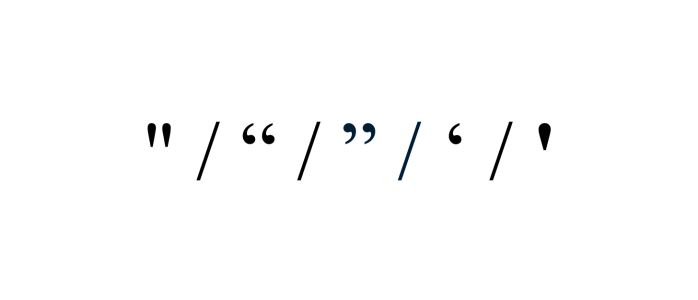
Straight quotes look the same whether they open or close a quotation and are a holdover from the typewriter. Smart quotes are the curly quotation marks that indicate the opening or closing of a quotation.

Often, when we cut and paste quotes from the web or other sources, we can unwittingly bring the local formatting into our documents, causing straight quotes to show up where they shouldn’t.

Fix: Find and Replace All

Word is set to automatically use smart quotes, so all you have to do is put a quotation mark into โ€œFindโ€ and a quotation mark into โ€œReplaceโ€ and select โ€œReplace All.โ€

Word will replace all the quotation marks with smart quotes whether they were originally straight or already smart.

You can do this with apostrophes as well. 

Can you spot the difference?

Commas following italicized titles, such as The Color Purple, should be consistent with the punctuation of the surrounding text (as it is here). 

It can be difficult to notice the difference between an italicized comma and a regular comma if you’re not looking for it, but now you’ll see this everywhere, and it will bug you. You’re welcome.

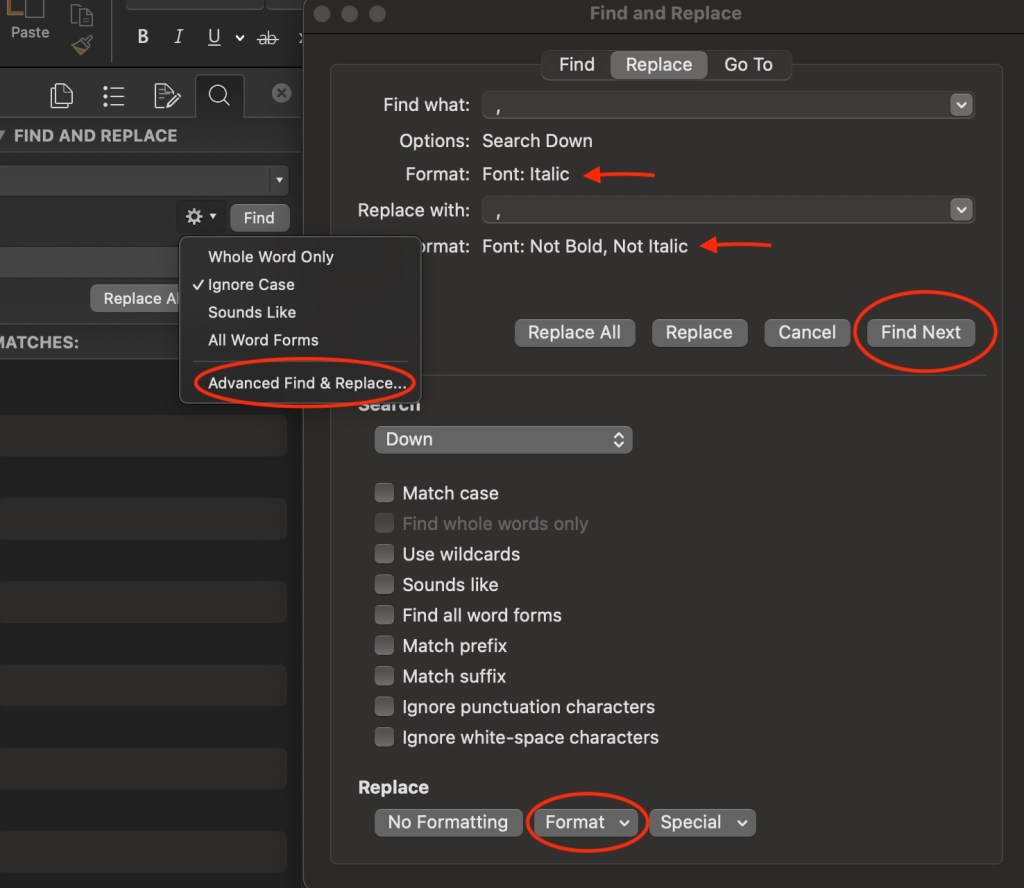
Fix: Advanced Find and Replace 

Under Advanced Find and Replace, type a comma in the โ€œFind whatโ€ field. 

Then use the dropdown and select Format > Font > Font Style > Italics

Under the “Replace” tab, type a comma in the โ€œReplace withโ€ field. 

Then select Format > Font > Font Style > Regular

You can’t use “Replace All” for this fix. Rather, you will have to decide whether or not to replace each instance individually, because there may be cases where the italicized comma should remain, such as when the comma appears within a title or italicized passage.

If you have any trouble executing these tips, please let me know here!

Early in the Dissertation Process? Here Are Some Process Tips

These tips are geared toward technical and planning aspects of the dissertation process that can make your life easier by the time you’re getting ready to submit.

These are things I wish I knewโ€”or did more consistentlyโ€”when I was in the process of writing my dissertation.   

  • Download previously published dissertations from your department. You can usually find them on the university library website, the graduate studies website, or a dedicated university research repository website.
  • Take a look at a few examples and look for things like, How are they formatted? Where do they insert their figures? Do the ones with epilogues look interesting or would a proper conclusion suit your work better? What are their abstracts like? Who do they thank in their acknowledgements
  • Itโ€™s never too early to look at your universityโ€™s thesis formatting guidelines. What are your options when it comes to fonts and sizing? How should block quotes be indented? Should they be single- or double-spaced?
  • It can be a headache to go through and convert all the formatting at the end of the writing process, so it’s helpful to keep formatting in mind as you write.
  • Along these lines, pay attention to what happens to your formatting when you cut and paste content from other files or sources; the formatting is often imported along with the content. Iโ€™ve seen cases where line spacing or paragraph indents had to be checked and fixed paragraph-by-paragraph throughout the entire dissertation because, of course, if your block quotes are formatted differently than the rest of the document, you can’t simply select-all and apply a change to the entire document.
  • If you have an eye to formatting as you go, youโ€™ll be smooth sailing at the finish line. 
  • Authors often use separate files to write their chapters. A benefit of using a single, long-form document is that you can more easily cut and paste and rearrange passages from one chapter to another. 
  • But it can be unwieldy to work with a long document if youโ€™re not taking advantage of Word’s navigation paneโ€”which allows you to create a clickable table of contents.
  • To learn how to create a long-form document that’s easy to navigate, click HERE
  • Make use of the “find” function to move around your document by searching keywords.
  • Fact: citations are frustrating. Reduce your pain by recording the full citation information of all your sources as you conduct your research, and by citing your sources as you write.
  • If you find yourself missing information from your citations, use google books, google scholar, or perplexity to find the missing parts. To find a page number, put a passage word-for-word in quotation marks into google.
  • When it comes to formatting your footnotes and bibliographic entries, the writing lab at Purdue University is an excellent resource.
  • When you’re researching in an archive, don’t forget to record the archive box and file numbers and titles. If you’re using your phone to take photos of archival items (with the archive’s permission of course), then also snap a photo of the file and the box information.
  • Use a scanning app on your phone to quickly create a PDFs.
  • And maintain a file naming convention for your PDF sources, as well as when youโ€™re versioning your work. Your future self will thank your present one!
  • Writing is like a muscle. Many find it productive to keep that muscle strong by writing somethingโ€”anythingโ€”every day.
  • Some write journal entries each day that may or may not have anything to do with their research, as per Joan Bolkerโ€™s wonderful advice.
  • Others keep a running file of their brainstorming. When I was writing my dissertation, I would often find myself sitting in front of my computer, thinking and thinking, trying to figure out what I wanted to say before I wrote it down. What I discovered was that it is much easier to figure out what I want to say when I free-write the thinking part. My free-writing might have sounded something like: “I donโ€™t think this is an argument. Ok so then what would make it an argument? What if I connect this bit with the section in chapter 2…how would that change things?”
  • Both techniques take away the pressure to produce usable writing, and in the process, often end up producing usable writing!

If you have questions or wish there were a blog post that illuminated some other aspect of dissertation preparation, please let me know!

Make A Table of Contents in Word

This post is for those of you who think to yourselves, “I know thereโ€™s a way to make a table of contents in Word, but I donโ€™t have time to learn that right now.”

Making a Table of Contents takes way less time than you think.

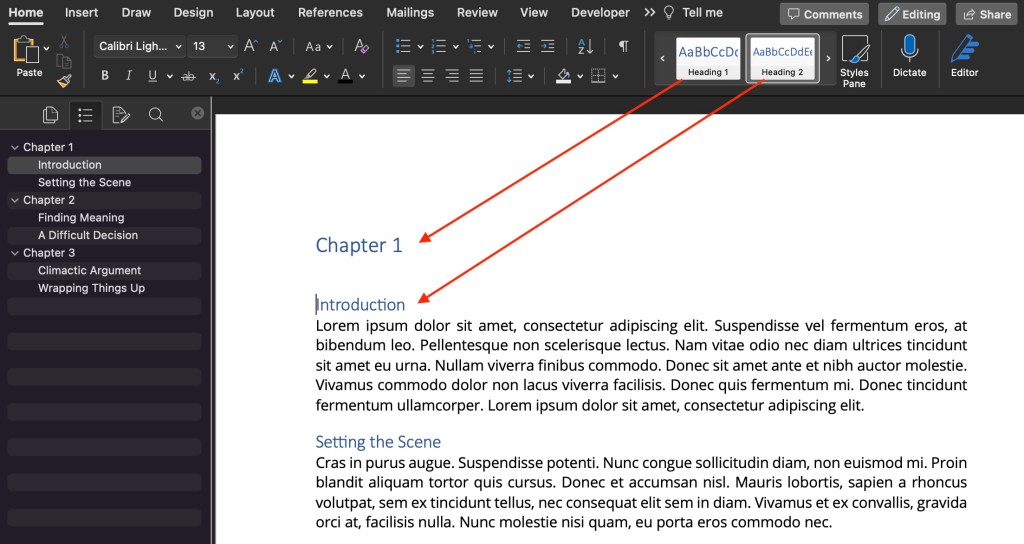
Once you have assigned heading styles to your chapters and subheadings, you can create a Table of Contents in three clicks.

  • Assign headings to your chapters and subtitles (learn how HERE).
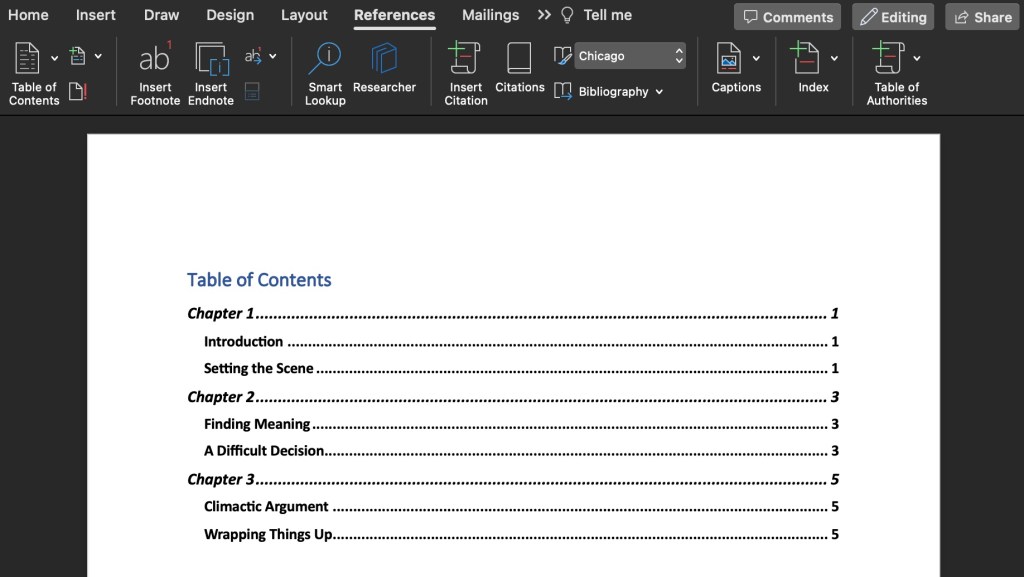
  • Click References > Table of Contents
  • Choose a Style (I chose Classic)

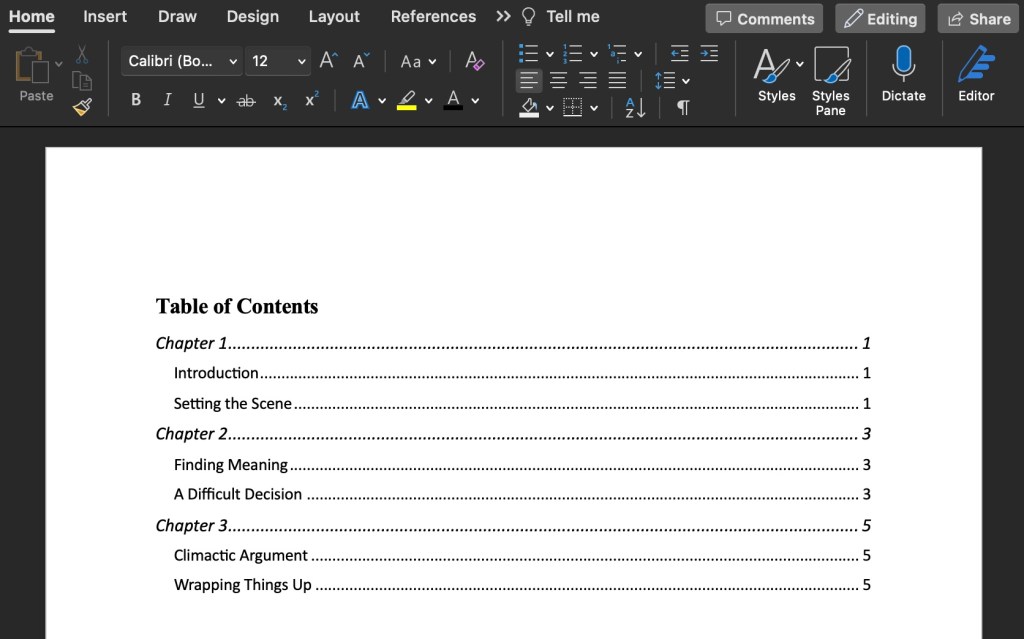
Here is what my Table of Contents looked like with Word’s default style settings:

You can change the fonts, font size, style, and colour using your usual font tools under the HOME tab in your Main Menu:

Done!

*** If you change anything in your document that should be reflected in the Table of Contents, you must update it manually. Double-click the Table of Contents in your document, and under the drop-down menu, choose Update Table…